

Dashboard
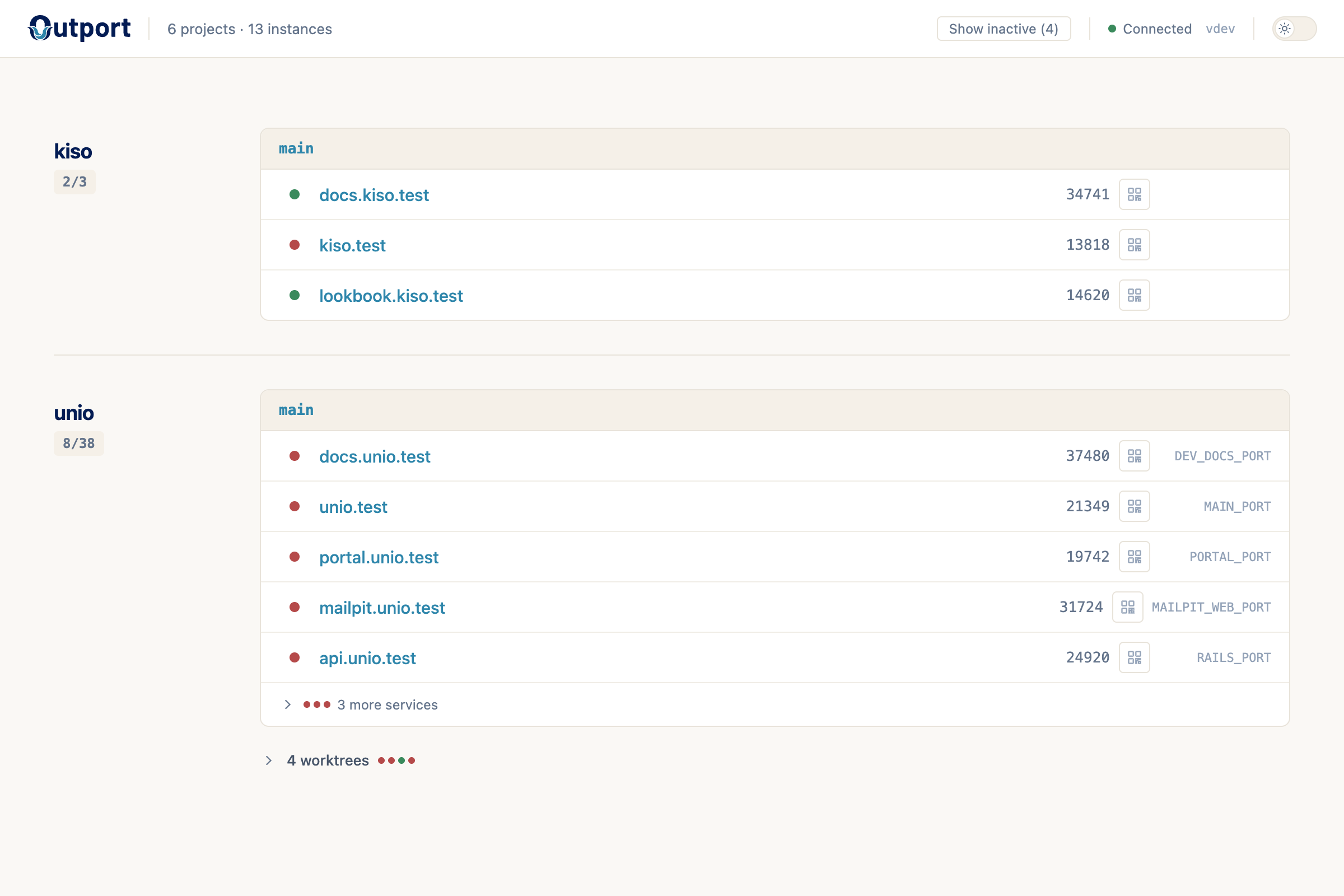
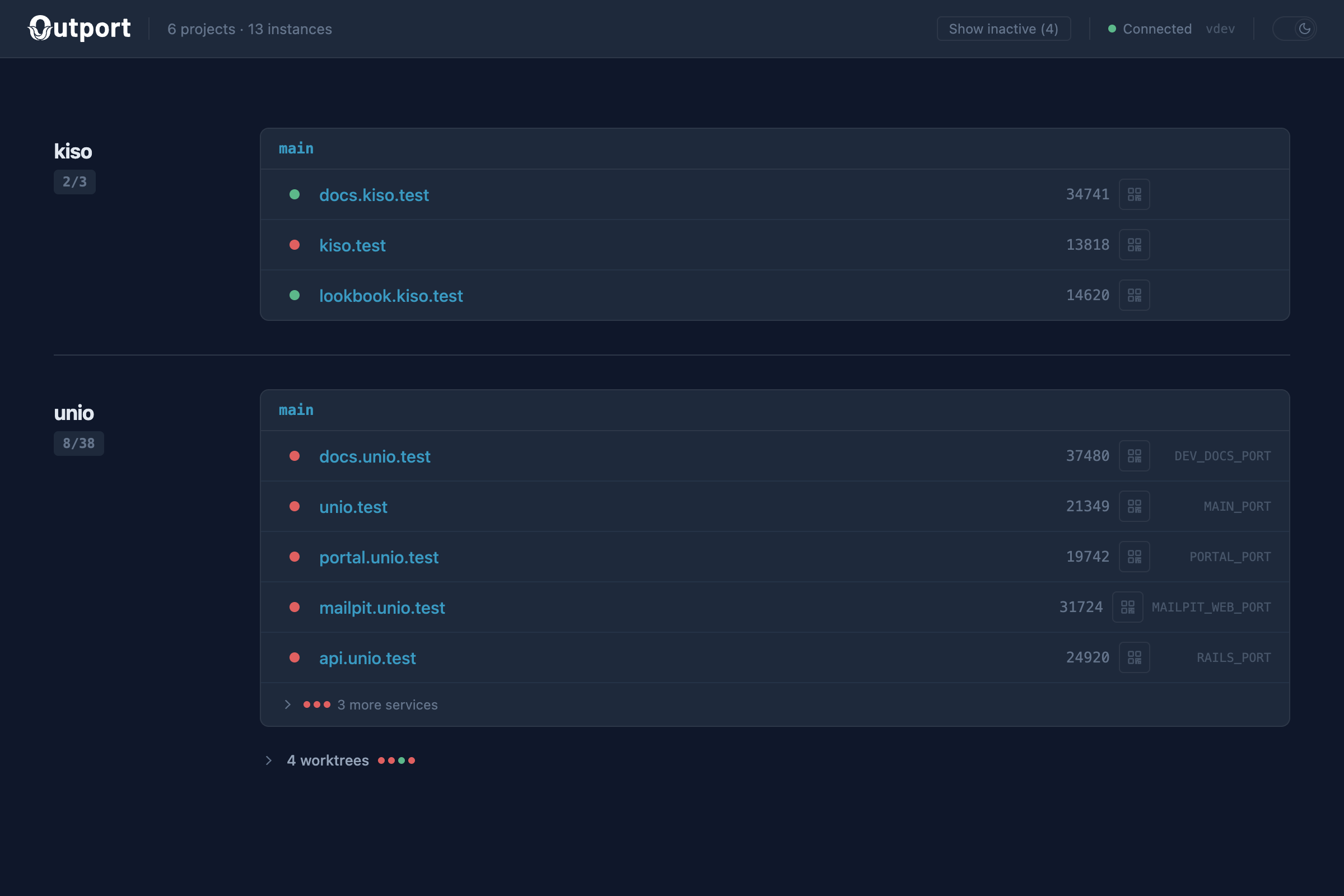
The Outport daemon serves a live web dashboard at https://outport.test. Every .test URL across all your projects is a clickable link — the dashboard is the fastest way to open any service. QR codes let you open the same URLs on your phone. It also shows ports, health status, and live updates — all in one place, no terminal needed.
Prerequisites
The dashboard requires the daemon to be running:
outport setupOr if you've already run setup:
outport system startOnce running, open https://outport.test in your browser.
What it shows
Each registered project appears as a card with:
- Project name and health summary (e.g., "3/5" means 3 of 5 services are up)
- Instance label —
mainfor the primary checkout, or the instance code for worktrees - Web services — clickable
.testURLs with status dots (green = up, red = down) - Infrastructure services — ports and env var names for databases, caches, and other non-HTTP services
Live updates
The dashboard updates automatically. You never need to refresh the page.
- Registry changes push instantly — when you
outport upa new project oroutport downan existing one, the dashboard reflects it immediately. - Health status is checked every 3 seconds while the dashboard is open. When a service starts or stops, the status dot updates in real-time.
- Connection indicator in the header shows whether the live connection is active. If it drops, the dashboard reconnects automatically.
Health checking only runs while the dashboard tab is open — no CPU cost when nobody's watching.
Active and inactive projects
Projects where all services are down are considered inactive and hidden by default. Click "Show inactive" in the header to reveal them. This keeps the dashboard focused on what's running right now.
Progressive disclosure
The dashboard uses collapsible sections to avoid clutter:
- Infrastructure services (databases, caches) are collapsed under a "N more services" toggle with inline status dots, so you can see their health at a glance without expanding.
- Worktree instances are collapsed under a "N worktrees" toggle. The main instance is always visible. Each worktree shows a health dot in the collapsed summary.
QR codes for mobile access
Each web service row has a QR code button. Click it to reveal a scannable QR code encoding the service's LAN URL (http://<your-ip>:<port>). Scan with your phone on the same Wi-Fi network to open the dev app — no typing IP addresses and port numbers.
When outport share is running, a LAN / Tunnel toggle appears in the QR panel. Switch to Tunnel to get a QR code for the Cloudflare tunnel URL, which works from any network.
QR codes are also available from the CLI with outport qr.
Tips
- Pin the tab. The dashboard is most useful as a pinned browser tab that's always available.
- Use it alongside VS Code. The VS Code extension shows per-project detail in the editor, while the dashboard gives you the cross-project overview.
- Find your URLs fast. Every
.testhostname is a clickable link — the dashboard is the fastest way to open any service across all your projects.